
작업자 앱
Capturing Photos
How to capture container photos by type, retake them, and check quality.
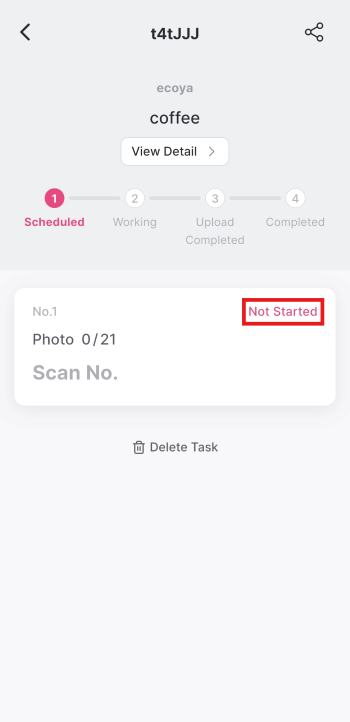
1. Container Status Values
The current status is displayed next to each item.
| Status | Description |
|---|---|
| Not Started | No photos taken yet |
| Photo Uploading | At least 1 photo uploaded. Task in progress. |
| Photo Uploaded | All requested photos uploaded. Review your photos and mark the task as complete. |
| Done | Task completed (view only — no edits or deletions) |
2. Photo Capture Screen
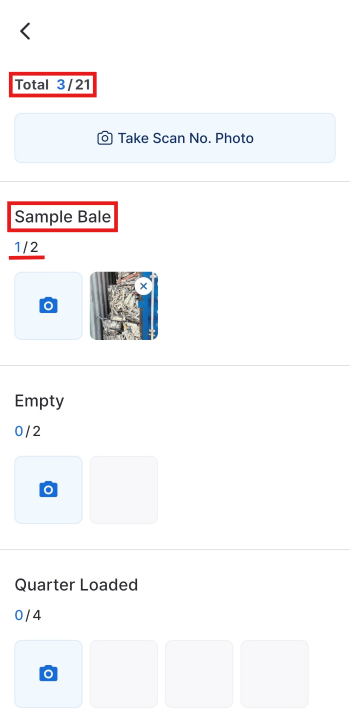
The progress indicator at the top of the capture screen shows your current progress.
- Photo type: The type of photo you need to take (e.g., Sample Bale)
- Photo number: Current number / total (e.g., 1/3)
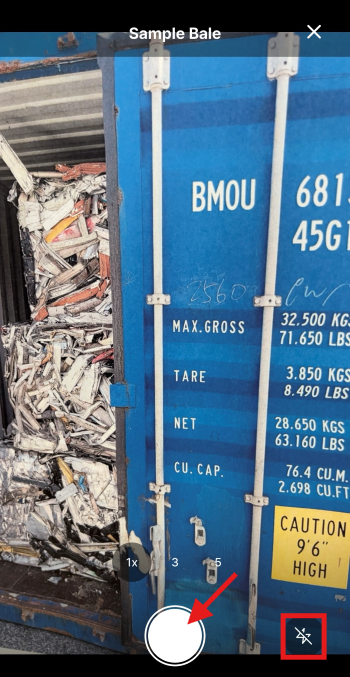
- Shutter button: Tap to take a photo
- Flash: Toggle On/Off
3. Watermark and Auto-save to Gallery
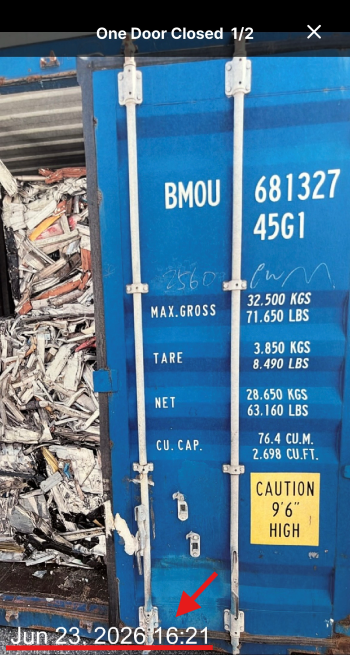
If the task was registered with the watermark turned on, the date and time of capture will be printed on the photo automatically.
- Example: Jun 10, 2026 08:54
- The watermark is off by default. It is configured at task creation and cannot be changed in the field.
Every photo you take is automatically saved to your device gallery with the watermark applied, and simultaneously uploaded to the server.
4. How to Retake a Photo
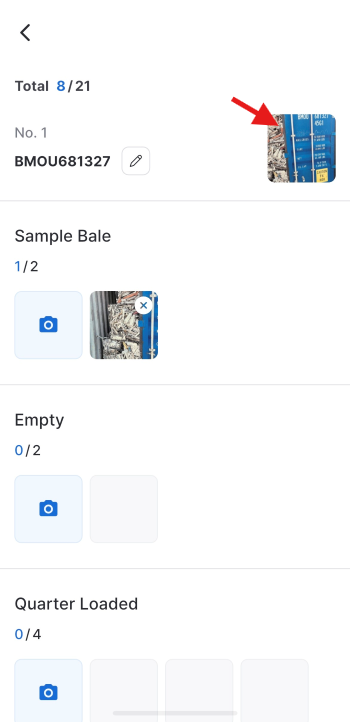
Photos taken in the field can be retaken directly from the container detail screen.
- Tap the photo area on the container detail screen to open the camera.
- The newly taken photo automatically replaces the existing one.
5. Quality Check
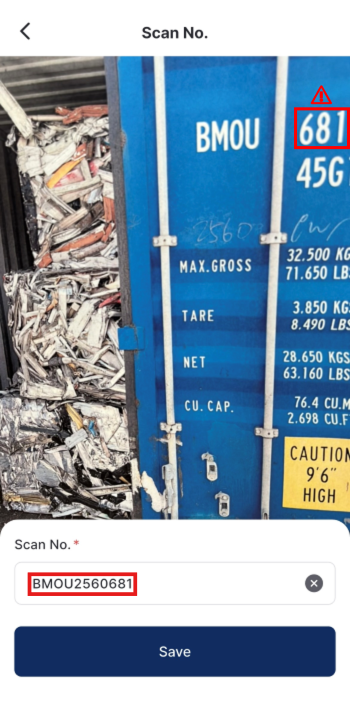
Check that the container number or subject is clearly visible before proceeding to the next step.
- Retake immediately if the image is blurry or the number is cut off.
- Once quality is confirmed, proceed to the next step.
6. When Storage Space Is Low
- Before opening the camera, the app automatically checks the device's remaining storage.
- If space is insufficient, a prompt appears and the camera will not open. Free up space and try again.
Was this article helpful?
What to try next
Getting Started (Enter Your Task Code)How to access the app with a task code, sign in, confirm the task, and start work from the task list.Container & Seal Number OCR ScanHow to scan container and seal numbers with the camera (OCR) on site for automatic entry.Submitting Photos and Completing a TaskHow to submit photos to complete a task and manage automatic upload of photos captured offline.