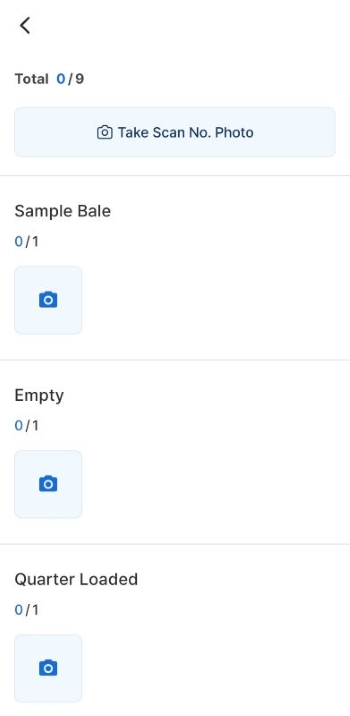
Getting Started (Enter Your Task Code)
How to access the app with a task code, sign in, confirm the task, and start work from the task list.
1. Install the App
Search for ECOYA SNAP on the App Store (iOS) or Google Play (Android) and install it.
2. Social Login
When you first open the app, create your account using social login.
| Platform | Supported Login |
|---|---|
| Android | Google account |
| iOS | Apple account, Google account |
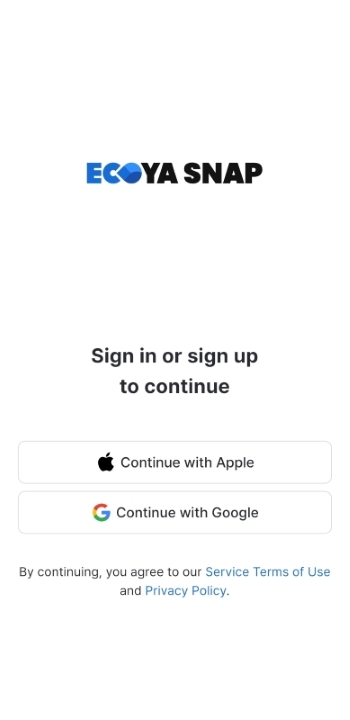
If you're already signed in to the App Store or Google Play, your account details are pulled in automatically — no need to remember a separate username or password. Just tap once to get started.
An account-linking prompt may appear after login.
3. Terms of Service
You must agree to the following on first sign-up.
- Terms of Service
- Privacy Policy
- Location Service Terms (required)
4. Enter Your Task Code
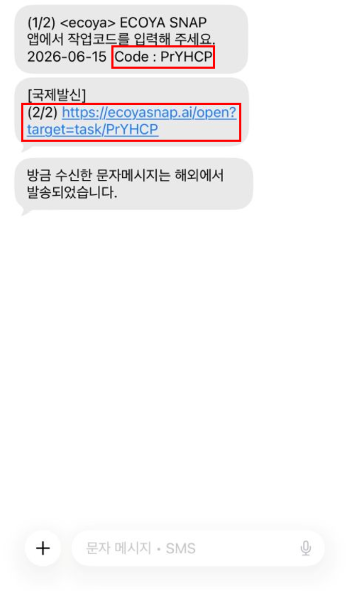
You will receive a 6-character Task Code from your coordinator. Enter it in the app to get started.
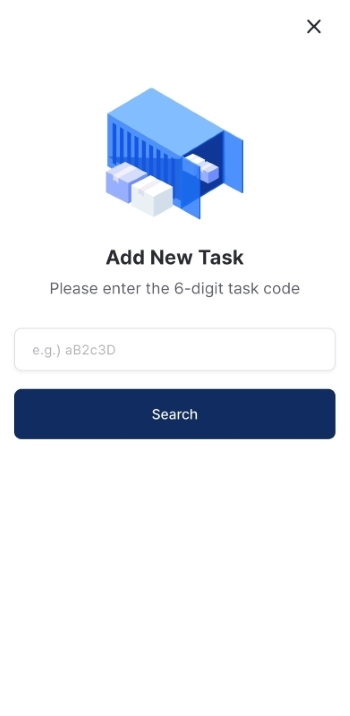
- Via link: Tap the link sent by your coordinator. The app opens and the task code is filled in automatically.
- Manual entry: Open the app and type the code into the Task Code field yourself.
If you need to hand off a task to another worker, simply share the Task Code with them.
Task Code Error Guide
An error message is shown in the following situations.
- The code format is incorrect (not 6 alphanumeric characters)
- The code has already been registered
- The task has been canceled
Check the error message, re-enter the correct code, or contact the person who assigned the task.
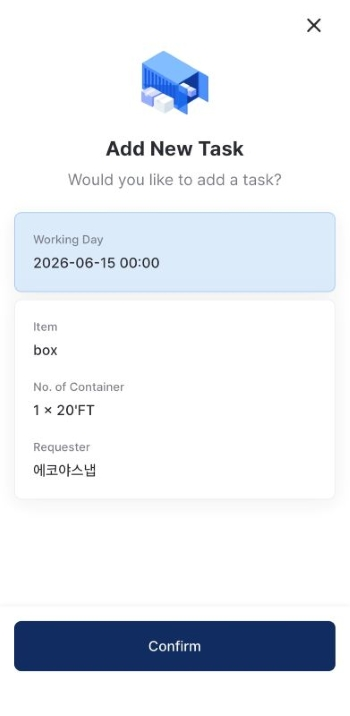
5. Confirm and Register the Task
- After entering the code, tap [Search].
- Review the task details (requester, item, number of containers, scheduled date).
- On first registration, check the Location Service consent checkbox to activate the [Confirm] button.
- Tap [Confirm]. The task is registered and you are taken to the Home screen.
If you have already granted location consent before, the [Confirm] button is active immediately.
6. Home Screen Layout
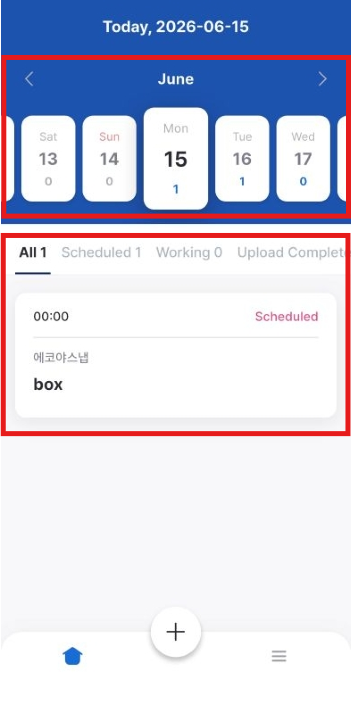
The Home screen has two main areas.
- Calendar: Shows the number of tasks per date. Tap Today to view today's tasks, or tap any other date to view tasks for that day.
- Task list: Displays registered task cards, each showing the request time, company name, and item.
7. Starting a Task
- Find a card with Scheduled status in the list.
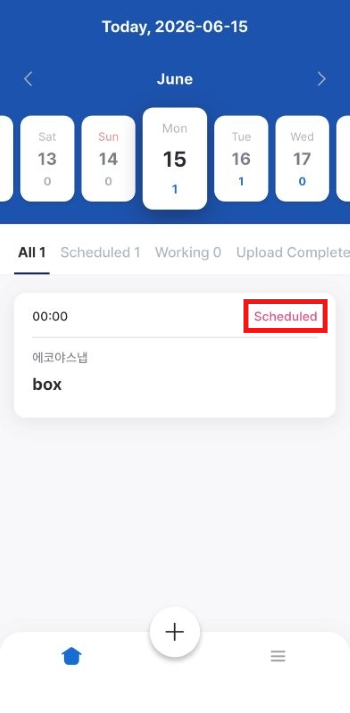
- Tap the [Start Task] button on the card.
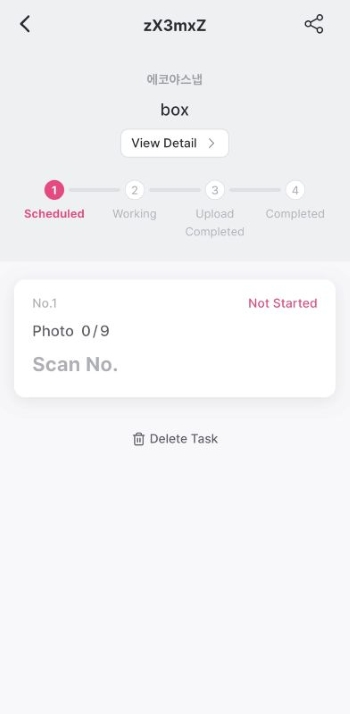
- The status changes to Working and you are taken to the task screen.