
작업자 앱
Submitting Photos and Completing a Task
How to submit photos to complete a task and manage automatic upload of photos captured offline.
1. Container Upload Complete
Once all requested photos for a container have been uploaded, that container's status automatically changes to Photo Uploaded.
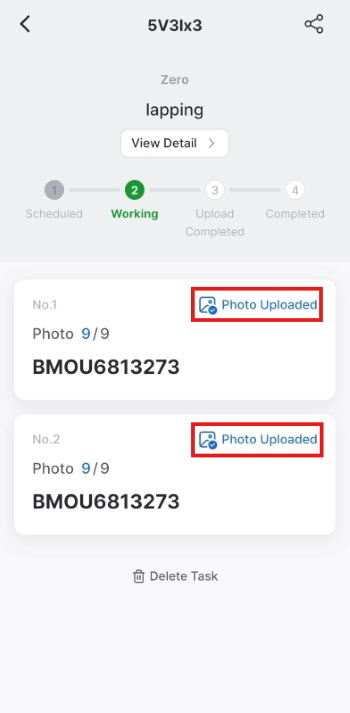
2. Activating the Complete Button
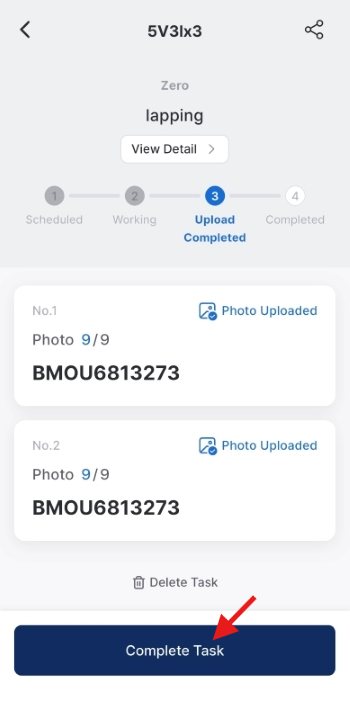
- The Complete Task button becomes active only when all containers in the task reach Photo Uploaded status.
- If any container still has photos pending, the button cannot be tapped.
3. Completing the Task
- Tap the now-active [Complete Task] button.
- A confirmation message appears.
"Photo submission complete = Task complete"
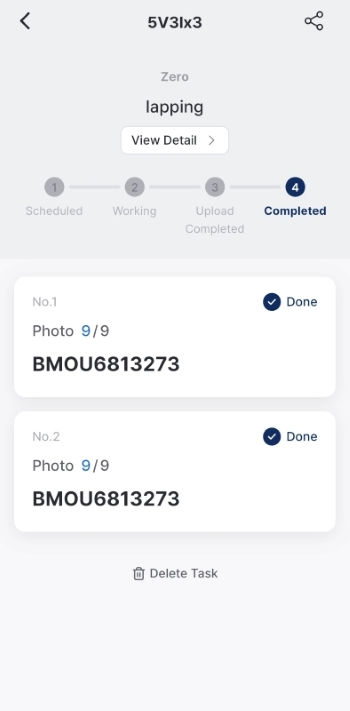
- Tap Confirm. The task status changes to Completed.
Important: Once a task is Completed, uploaded photos cannot be edited or deleted. Review your photos before confirming.
4. Viewing After Completion
- Containers in Done status (after task completion) are view-only.
- If a correction is needed, contact the person who registered the task.
5. Offline Capture and Pending Upload
No need to stop shooting even when there's no network on-site. Photos are saved to your device automatically. Once you're back in a connected area, simply open the app and the upload will start automatically.
- The camera works normally even without a network connection.
- Photos are not sent immediately; instead they are saved in a pending upload state.
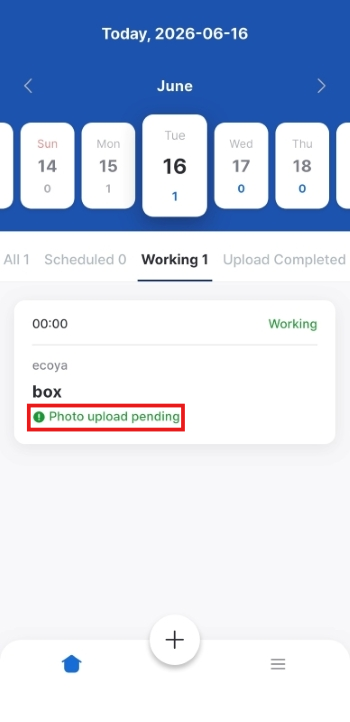
- The work card displays "Photo upload pending", and the pending count updates in real time.
- Once Wi-Fi or LTE is available, open the app and all pending photos will be uploaded automatically.
- The Complete Task button cannot be tapped until all requested photos have been uploaded. Once all photos are uploaded, the button becomes active — review your photos and tap complete.
Was this article helpful?
What to try next
Getting Started (Enter Your Task Code)How to access the app with a task code, sign in, confirm the task, and start work from the task list.Capturing PhotosHow to capture container photos by type, retake them, and check quality.Container & Seal Number OCR ScanHow to scan container and seal numbers with the camera (OCR) on site for automatic entry.