
작업자 앱
APP Troubleshooting
How to resolve common issues including low storage, app updates, permission errors, and offline photo uploads.
1. Low Device Storage
The app checks available storage automatically before entering the camera screen.
- If storage is insufficient, a prompt is shown.
- Dismiss the prompt to return to the previous screen.
- Free up space on your device, then re-enter the camera to continue shooting.
2. App Update Guide
Two update behaviors are possible depending on your app version.
| Situation | Behavior |
|---|---|
| A required update is available | An update prompt appears and the app cannot be used until the update is complete |
| A new version is available | An optional update message appears. You can continue using the app without updating |
3. Camera and Location Permissions
The following permissions must be granted for core app features to work.
- Camera permission: Required for taking photos.
- Location permission: Required when registering a task for the first time.
If a permission was denied, go to your device Settings > App Permissions and enable it manually.

4. Offline Capture and Upload Queue
No need to stop shooting even when there's no network on-site. Photos are saved to your device automatically. Once you're back in a connected area, open the app and the upload will start automatically.
- The camera works normally even without a network connection.
- Photos are not sent immediately; instead they are saved in a pending upload state.
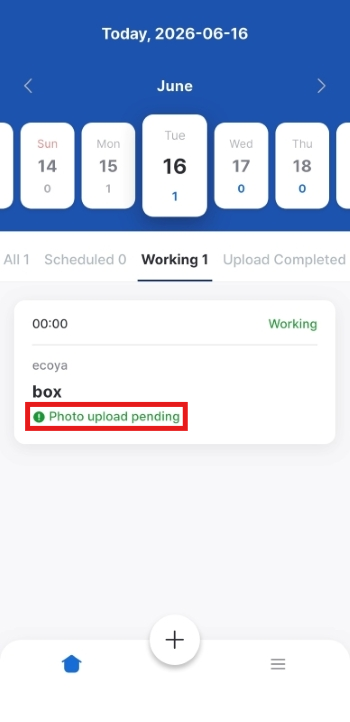
- The work card displays "Photo upload pending", and the pending count updates in real time.
- Once your network reconnects, open the app and pending photos will upload automatically.
Do not force-quit the app. Keeping the app running in the background will help uploads complete faster.
Was this article helpful?
What to try next
Getting Started (Enter Your Task Code)How to access the app with a task code, sign in, confirm the task, and start work from the task list.Capturing PhotosHow to capture container photos by type, retake them, and check quality.Container & Seal Number OCR ScanHow to scan container and seal numbers with the camera (OCR) on site for automatic entry.