
Registering a Task and Sending SMS
How to register recurring field tasks and send SMS links to workers.
💡 Sending a task deducts 1 credit from your balance. If your balance is insufficient the task won't send, so check your plan and credits first.
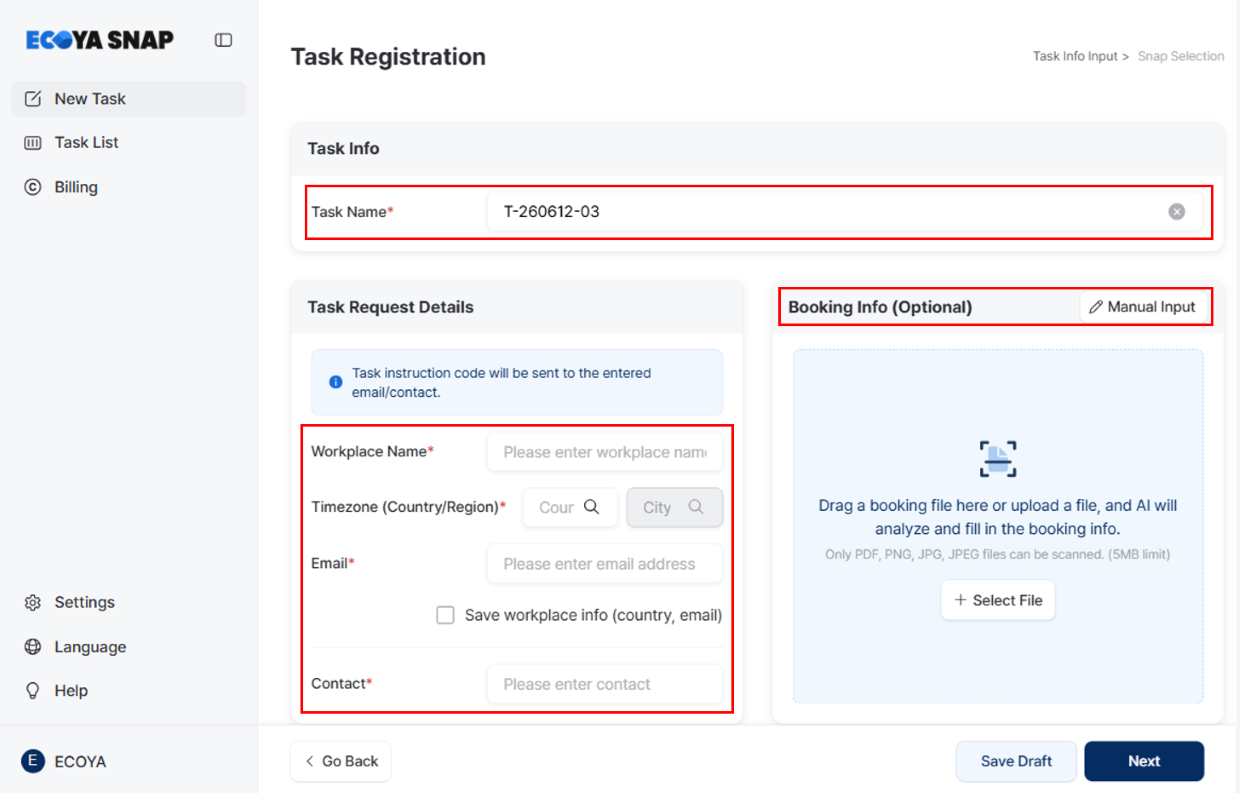
1. Task Name
The task name is auto-filled based on the creation date. You can edit it manually if needed.
2. Enter Booking Info (Optional)
Upload a booking document and Booking No., Buyer, Vessel/Voyage No., ETD·ETA, and Cut-Off fields will be filled in automatically. Supports PDF·PNG·JPG·JPEG, up to 5MB per file.
3. Worksite and Sending the Work Order
Select a saved worksite or enter a new address. Work orders are sent by email and SMS, along with a 6-digit Task Code.
Workers need to install the ECOYA SNAP app from the App Store, then enter the Task Code to register for the job.
When the worker taps the link in the SMS:
- If the app is already installed, they are automatically taken to the task registration screen.
- If the app is not installed, they are directed to the app download page.
4. Task Info
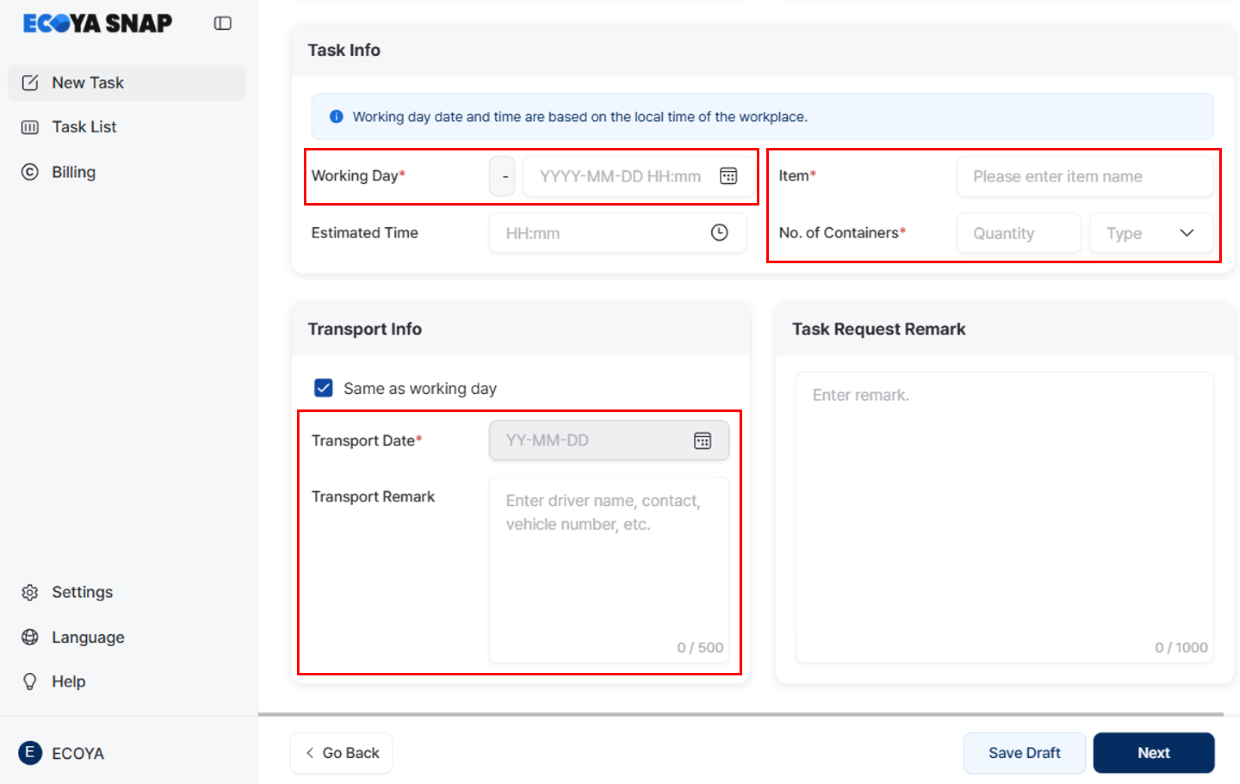
Enter the scheduled date (based on the worksite's local time), estimated work time, Item, and the number and type of containers (Direct·40'HQ·40'FT·20'FT).
5. Snap Settings (Photo Types)
Set up photo types and the number of photos per type. You can choose from the default types provided or reorder them as needed.
Watermark Settings
Photos are stamped with the date and time by default. To also display the worksite address, turn the watermark setting on before creating the task.
Depending on the worker's app environment, the address may not be captured even when this setting is on.
6. Transport Info
Enter the transport date and transport notes such as the driver's name, contact, and vehicle number.
7. Save Draft and Send
You can save your work as a draft at any time. Pressing Send deducts 1 credit and moves you to the task list.