
Reports & Sharing
Report Sharing and Link Management
Learn how to generate a share link from the task detail screen and send it via email.
From the task detail screen, you can create a share link, send it by email, and download work photos — all in one place.
1. Link Sharing
- Click the Link Share button at the top of the task detail screen to open the sharing window.
- One share link is generated per task.
- You can pause or resume sharing at any time.
- The link is valid for 90 days after the task completion date. After expiry, partners can no longer access the link.
2. Email Sending
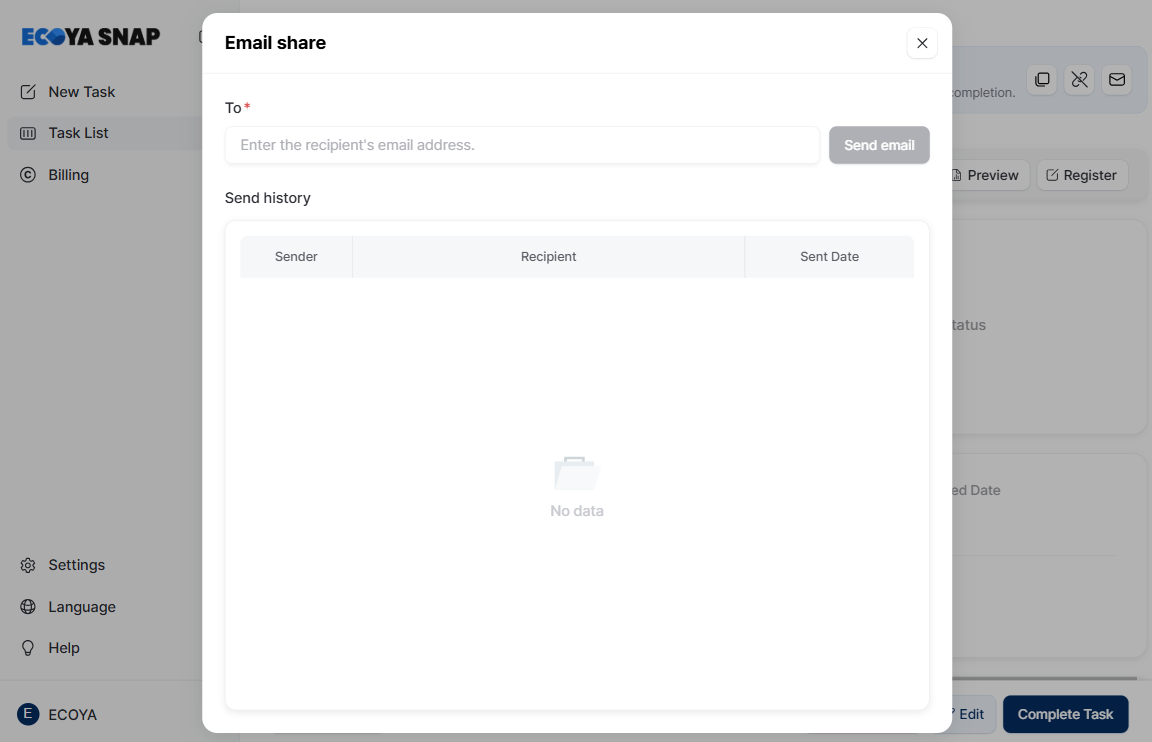
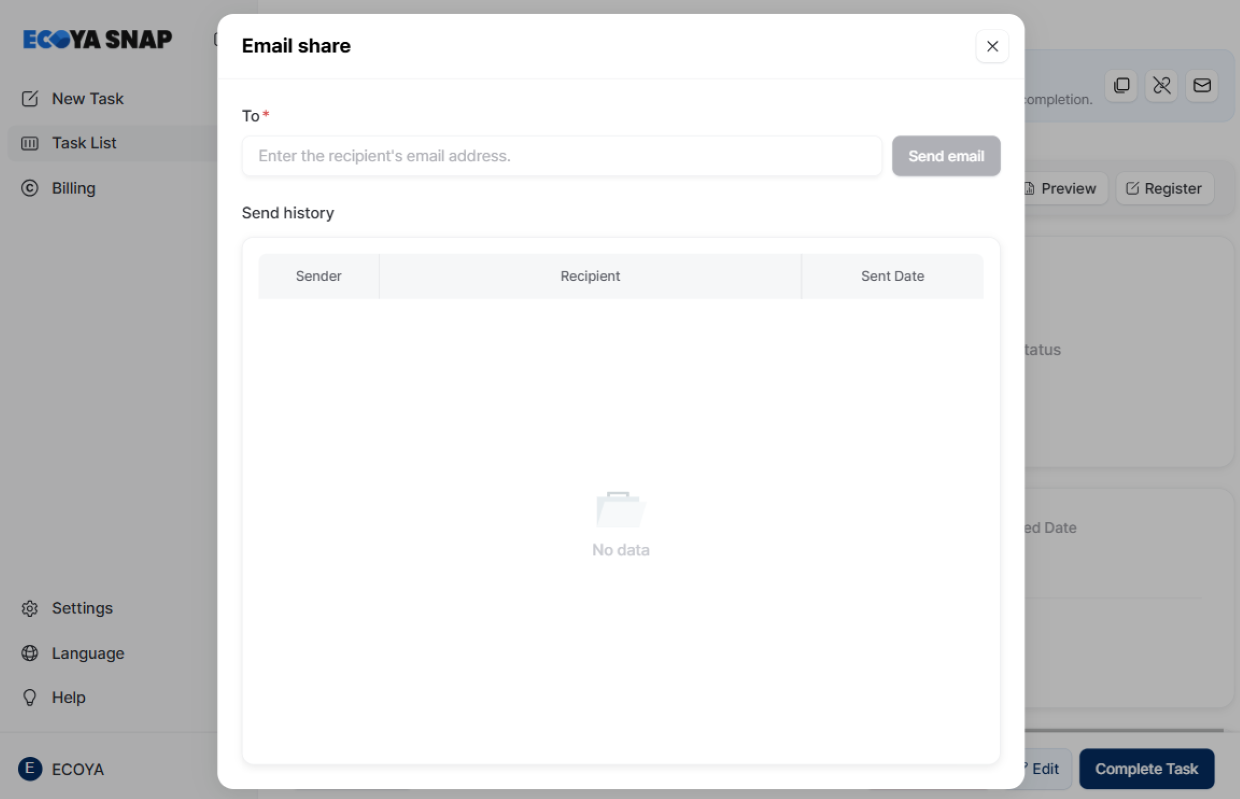
- In the Email tab of the sharing window, you can enter multiple recipients directly.
- The email subject is auto-filled as
[ECOYA SNAP][Company Name]Task Name. - The email body includes a link that lets partners open the report with a single click.
- Sending history is available within the sharing window (sender / recipient / sent date, up to 10 entries).
3. Bulk Photo Download
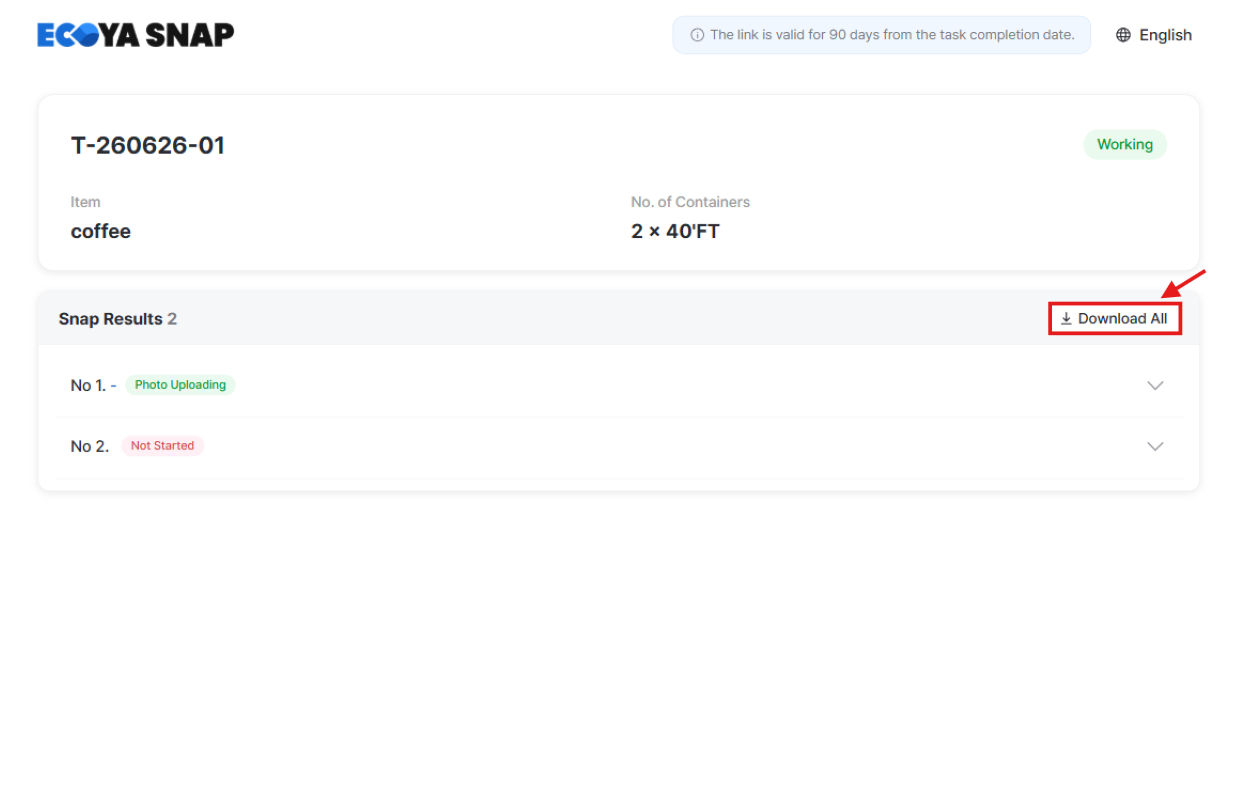
- In the Snap Results section at the bottom of the task detail screen, select the photos you want and click the Download button to save all selected photos as a zip file at once.
4. Registering a Report
Click the Register button in the upper right corner of the task detail screen to open the Report Details window.
- Enter any notes or updates you'd like to share with your partner. (Up to 1,000 characters)
- Attach up to 2 related files.
- Supported formats: PDF, JPG, PNG, XLS, DOC, PPT
- Max 10MB per file
- Click Save and changes will automatically be reflected in any previously shared links.
- Use the Preview Report button to see exactly what your partner will see before sharing.
5. Publish Badge Status
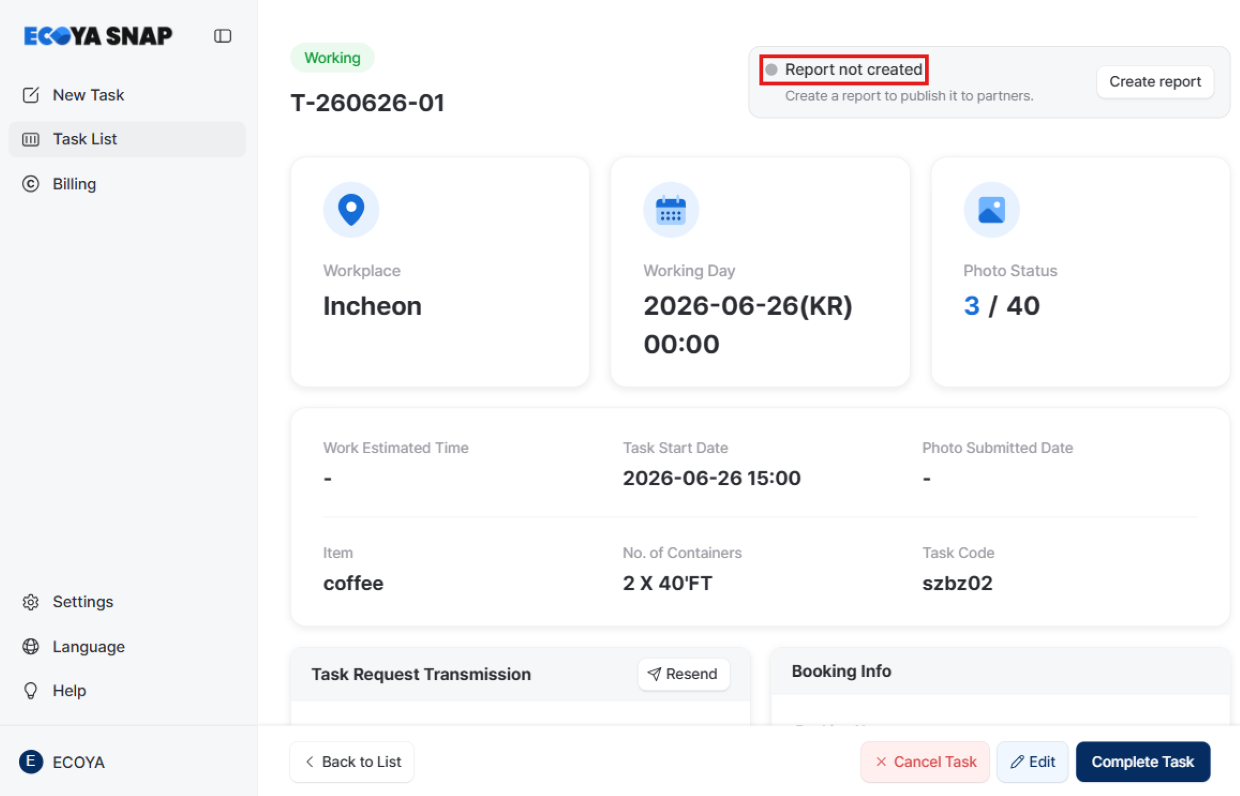
You can check the current sharing status of your report from the badge in the upper right corner of the task detail screen.
| Badge | Status |
|---|---|
| Report Not Created | No share link has been generated yet. |
| Publishing | Partners who received the link can view the report. |
| Paused | The link is deactivated. Partners cannot access the report. |
| Expired | Automatically set after 90 days. Cannot be reactivated. |
Even when paused, the link itself remains intact. Simply click Resume to reactivate the same link — no need to create a new one or share it again.
This is useful when you need to temporarily restrict partner access, or when you want to update the report before making it visible again.
Was this article helpful?
What to try next
5-Minute Tutorial for First-Time UsersEnd-to-end quick-start guide covering sign-up via magic link or social login, workspace creation, registering and sending your first task, field photography, and sharing the report.Registering a Task and Sending SMSHow to register recurring field tasks and send SMS links to workers.Inviting Members and Managing PermissionsHow to invite members by email and understand the difference between Owner, Admin, and Member roles, plus how to remove, leave, or delete a workspace.