5-Minute Tutorial for First-Time Users
End-to-end quick-start guide covering sign-up via magic link or social login, workspace creation, registering and sending your first task, field photography, and sharing the report.
💡 Have your company email address (or Google/Apple account) ready. Field workers just need to install the ECOYA SNAP app to get started.
1. Sign Up and Create a Workspace
Sign up by email
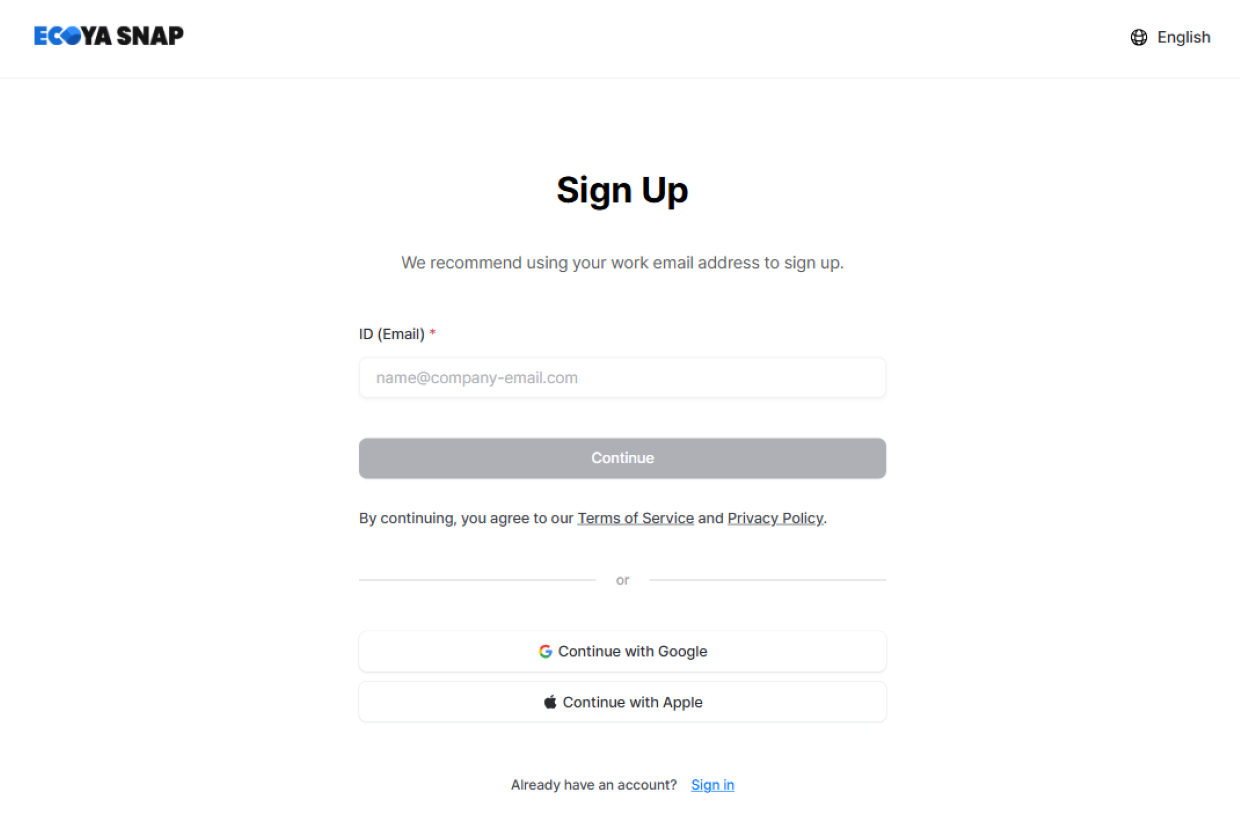
- Enter your email address and click Continue — a login link will be sent to your inbox.
- Click the link in the email to log in. The link expires in 1 hour.
- Alternatively, use Continue with Google or Continue with Apple for social login.
Set up your profile
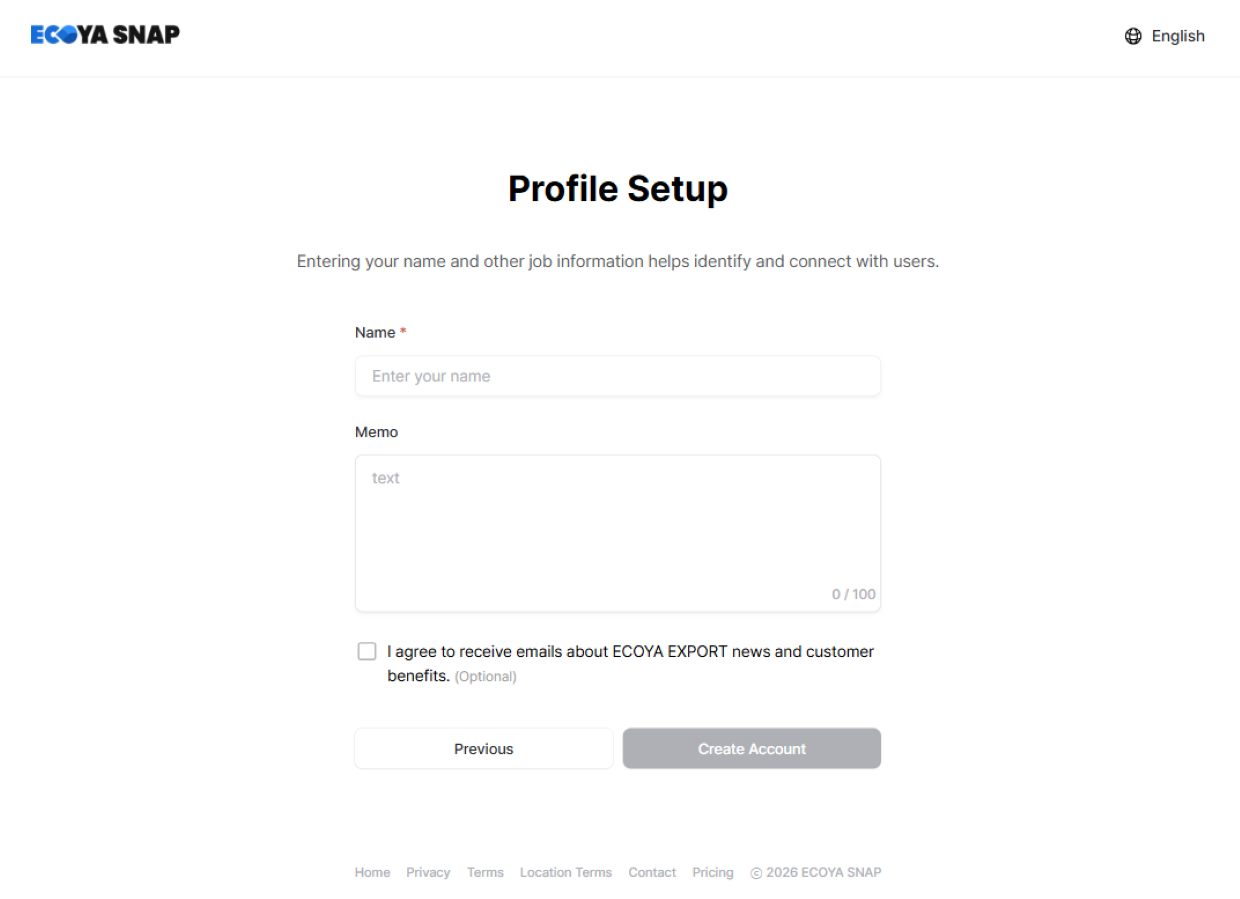
- Enter your name (required).
- The "Receive ECOYA SNAP news and customer benefit notifications" checkbox is optional.
- Click Create Account to finish.
Create a workspace
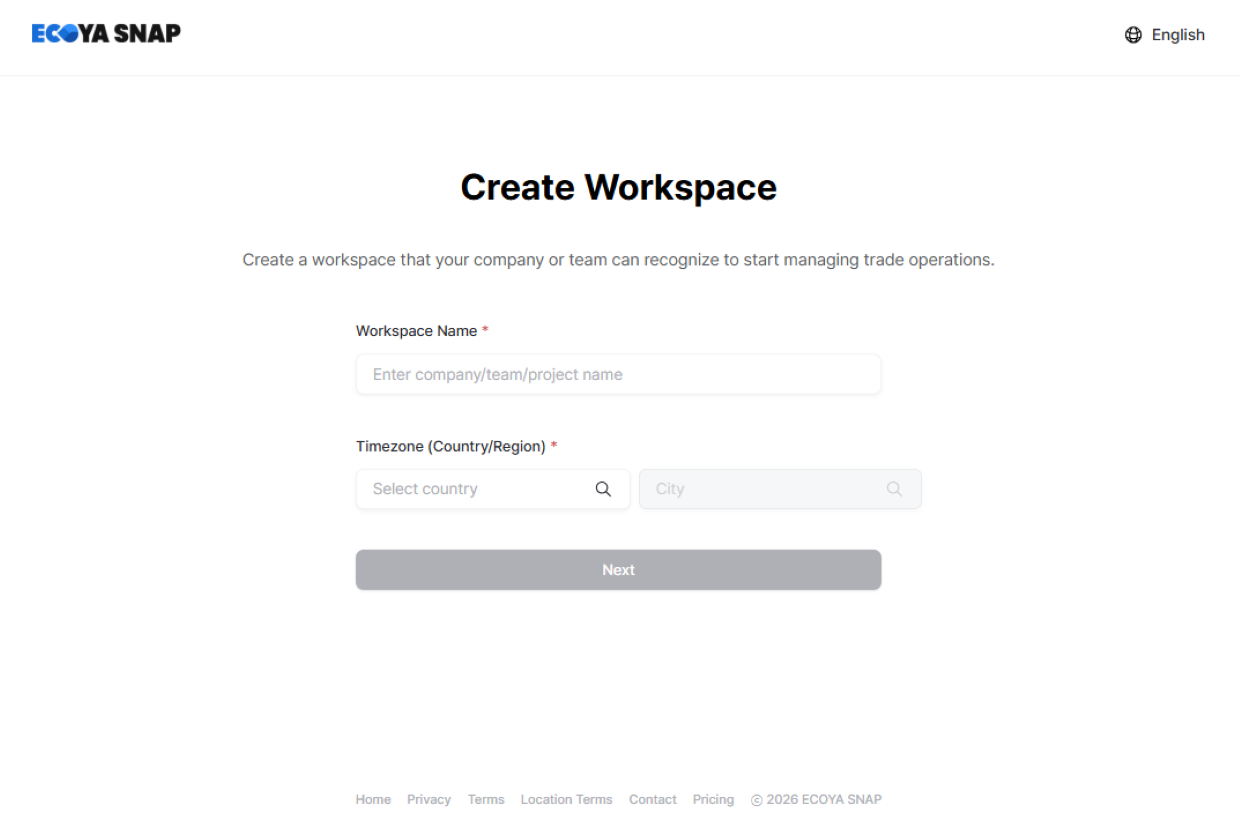
- Enter your workspace name. Both Korean and English are supported. Duplicate names are not allowed.
- Select your time zone (country/region) — you can search by country code, country name, or city.
- Click Next to complete workspace creation.
If you received an invitation: check your inbox for the ECOYA SNAP invitation email and click Join Workspace. You will be taken directly to the login page.
2. Register Your First Task
On the task list screen, click the Create Task button.
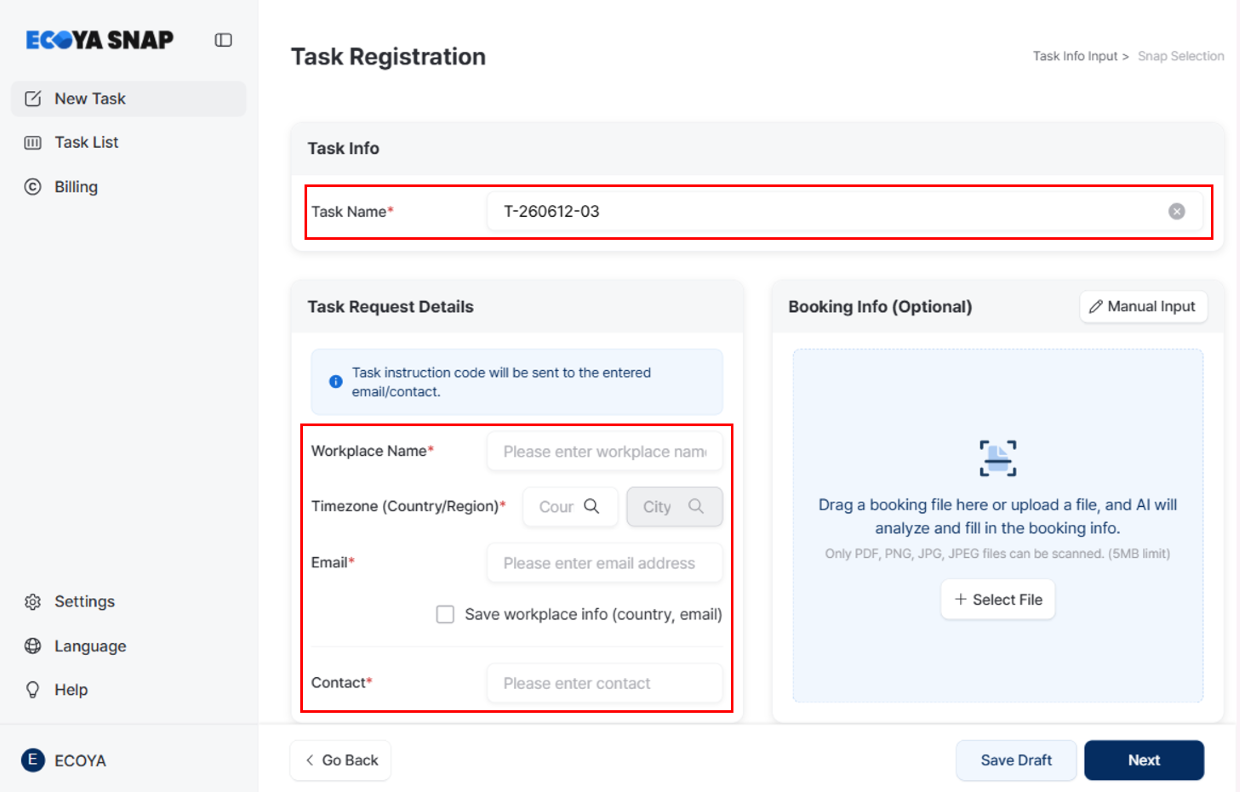
Task name
The task name is auto-filled based on the creation date. You can edit it to any name you prefer.
Work site and dispatch settings
- Select a saved work site address or enter a new one. Check "Save this address" to reuse it later.
- Enter the email addresses of recipients for the work order (multiple entries allowed). Phone numbers for SMS can also be added.
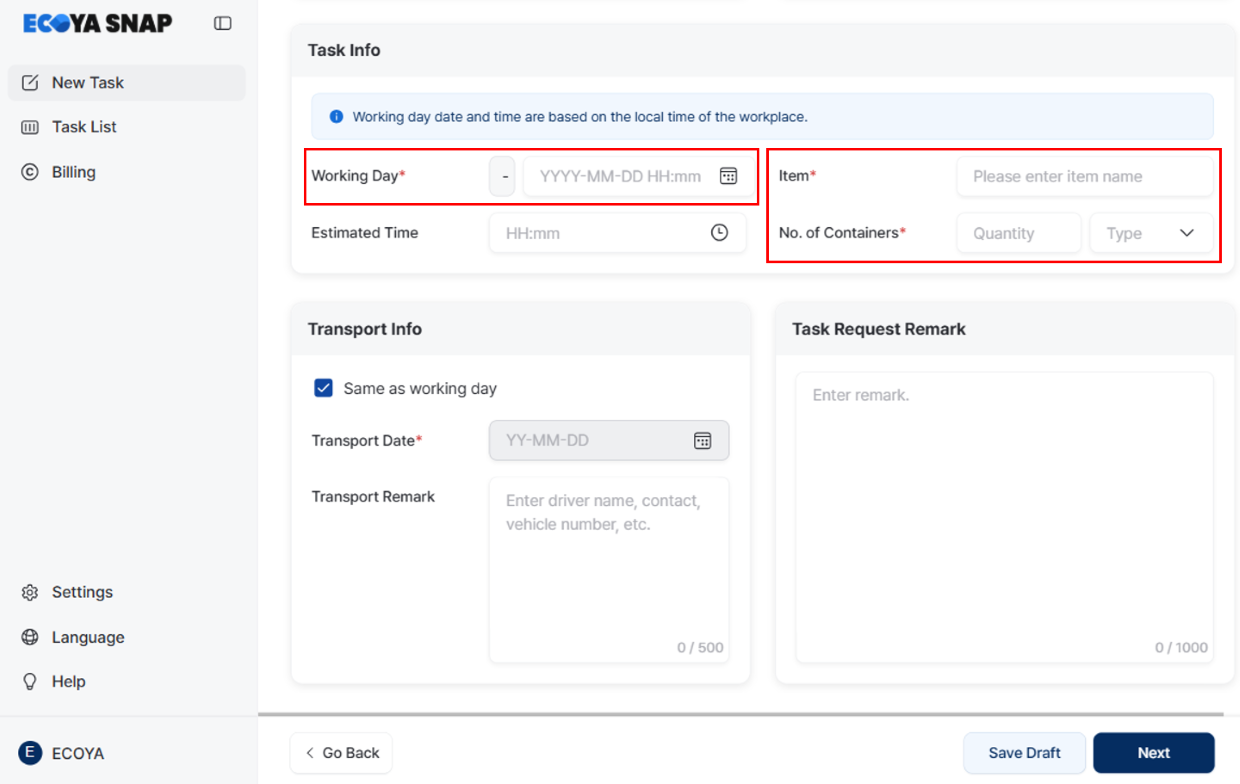
Task information
Fill in the scheduled work date (in local time at the site), item description, and container count/type (40'HQ / 40'FT / 20'FT, etc.).
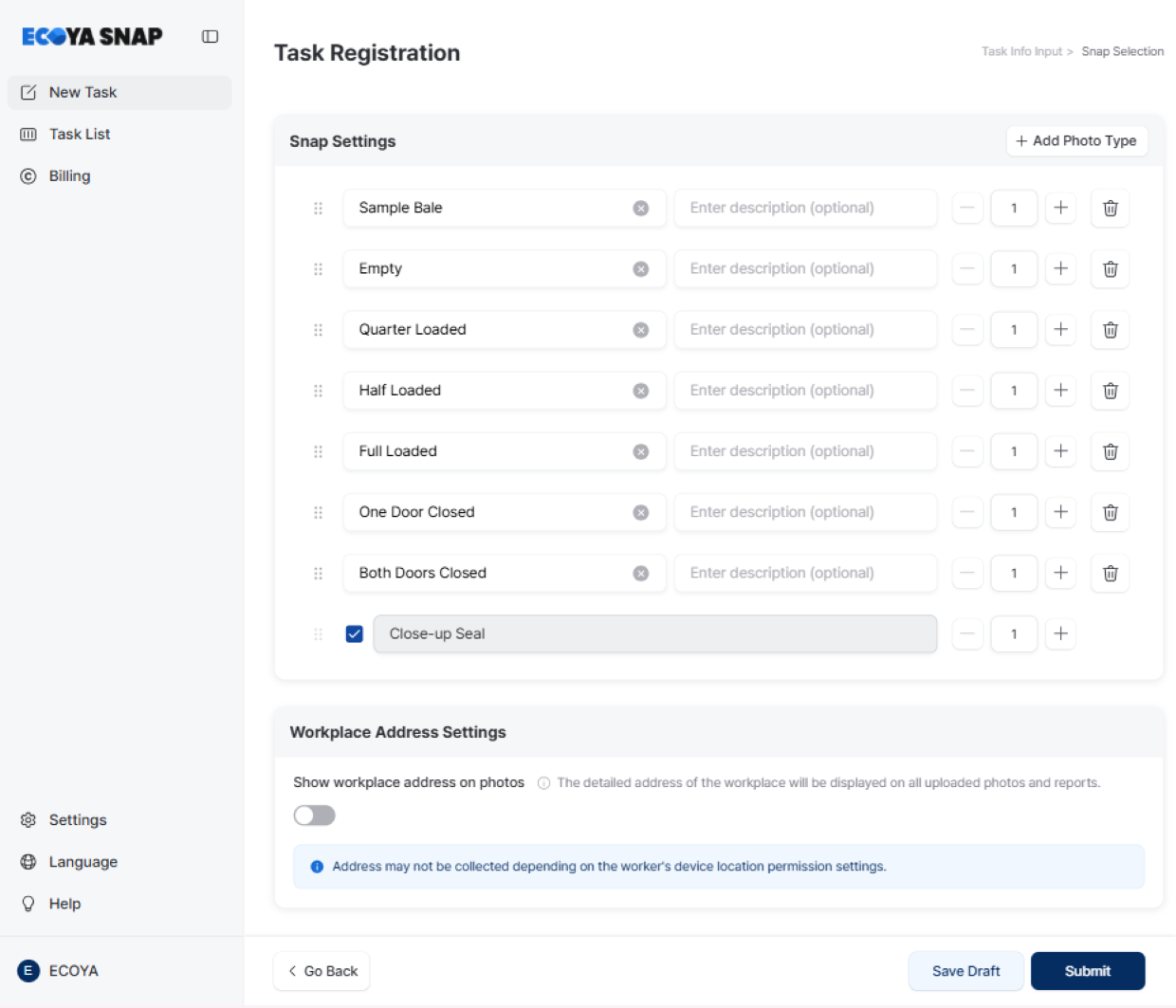
Snap settings — configure photo types
Default photo types are pre-configured so you can start right away. Add the types you need or remove ones that don't apply to keep things focused.
| Type | Description |
|---|---|
| Sample Bale | Sample bale photo |
| Empty | Empty container |
| Quarter Loaded | 25% loaded |
| Half Loaded | 50% loaded |
| Full Loaded | Fully loaded |
| One Door Closed | One door closed |
| Both Doors Closed | Both doors closed |
- Close-up Seal: automatically recognises the seal number. Uncheck to exclude from the shoot.
- Up to 15 photo types can be configured; each type allows 1–20 photos.
- Drag to reorder types — workers will shoot in exactly that order. Setting up the sequence in advance helps reduce confusion on-site.
Watermark Settings
Photos are stamped with the date and time by default. To also display the worksite address, turn the watermark setting on before creating the task.
Depending on the worker's app environment, the address may not be captured even when this setting is on.
Booking information (optional)
Upload a booking document (PDF/PNG/JPG/JPEG, max 5MB) and AI will automatically fill in Booking No., Buyer, Vessel/Voyage No., ETD, ETA, Doc Cut-Off, and Cargo Cut-Off.
Send the task
- Click Send to dispatch the work order by email and SMS. The task is created in Task Request status.
- 1 Work Credit is deducted per task sent. If your balance is insufficient, you will be directed to the plan management screen.
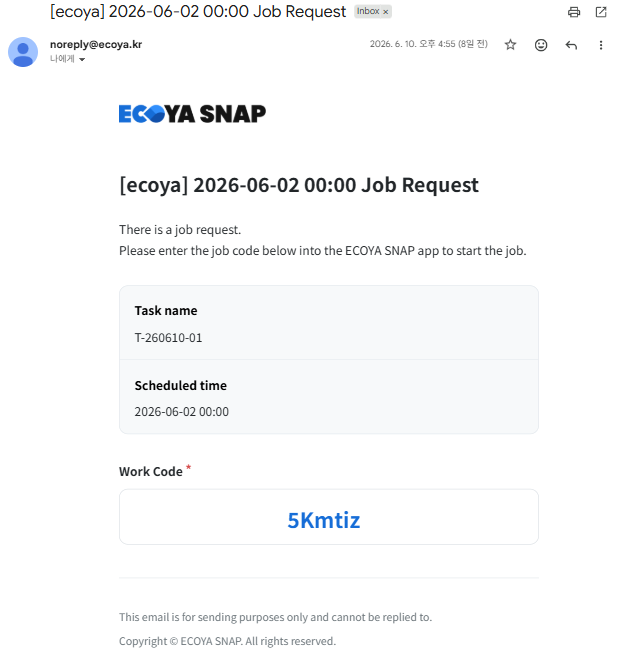
3. Field Photography (Worker's Perspective)
Workers check the 6-digit Task Code and link received by email or SMS.
- Tapping the link automatically opens the task registration screen if the app is already installed.
- If the app is not installed, they are directed to the app download page.
Once the ECOYA SNAP app is open, workers enter the Task Code to begin.
- After entering the code, the task moves to Task Scheduled status.
- Follow the on-screen instructions to photograph and upload each required photo type. Once the first photo is uploaded, the task moves to Working status.
- Container and seal numbers are recognised automatically.
- When all photos are done, tap Complete in the app — the task moves to Field Work Completed status.
4. Review and Share the Report
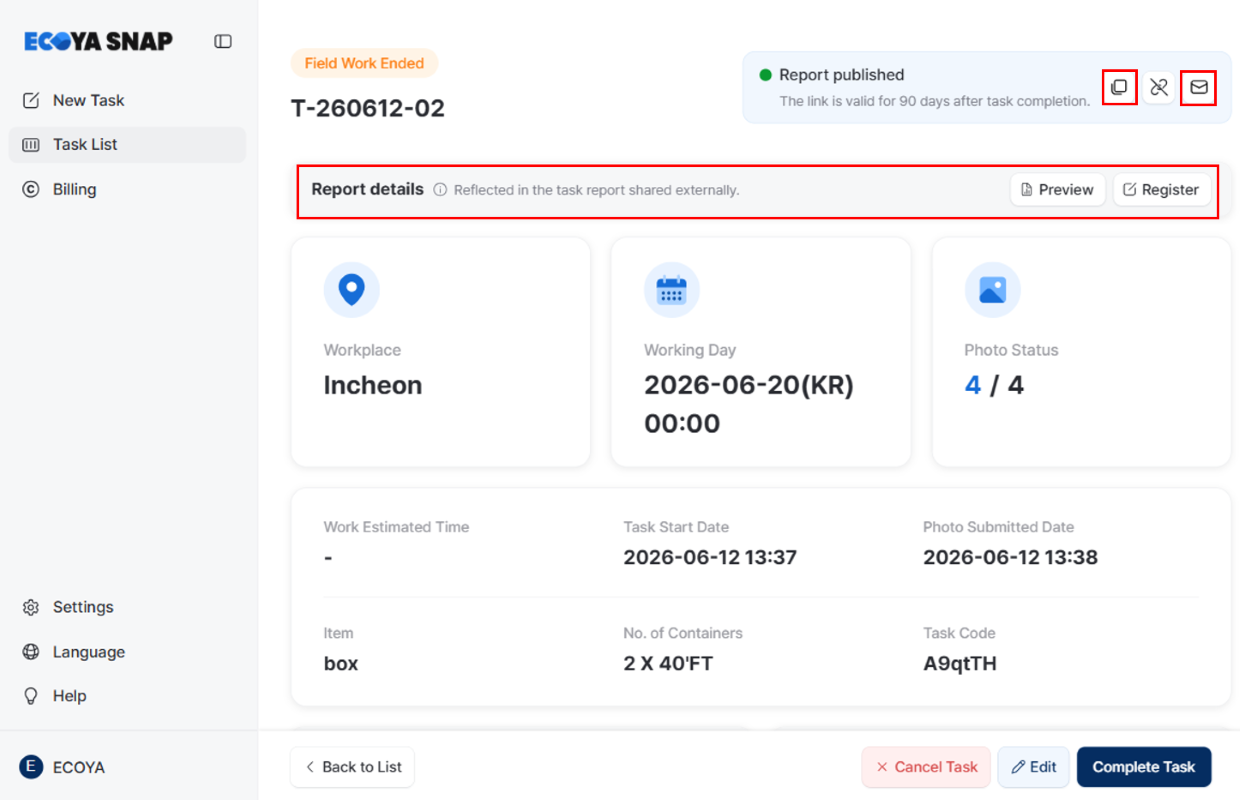
Return to the task detail page on the web, check the photo progress, and click Task Complete to close the task when everything looks good.
Register a Report
Click the Register button in the upper right corner of the task detail page to add notes or attach files for your partner. Changes are automatically reflected in the shared link when saved.
Share by link
- On the task detail page, click Share Link and copy the URL to send.
- The link expires automatically 90 days after the task completion date.
- You can pause or resume sharing at any time.
Share by email
- In the sharing window, switch to the Email tab, enter recipient addresses directly, and send.
- The last 10 sends are recorded in the send history (sender / recipient / sent date).