
Account & Permissions
Inviting Members and Managing Permissions
How to invite members by email and understand the difference between Owner, Admin, and Member roles, plus how to remove, leave, or delete a workspace.
Invite members to your workspace and understand the difference in permissions by role.
1. Inviting a Member
- Go to Settings > Member Management and select the Invite button.

- Enter the email address of the person you want to invite and send.

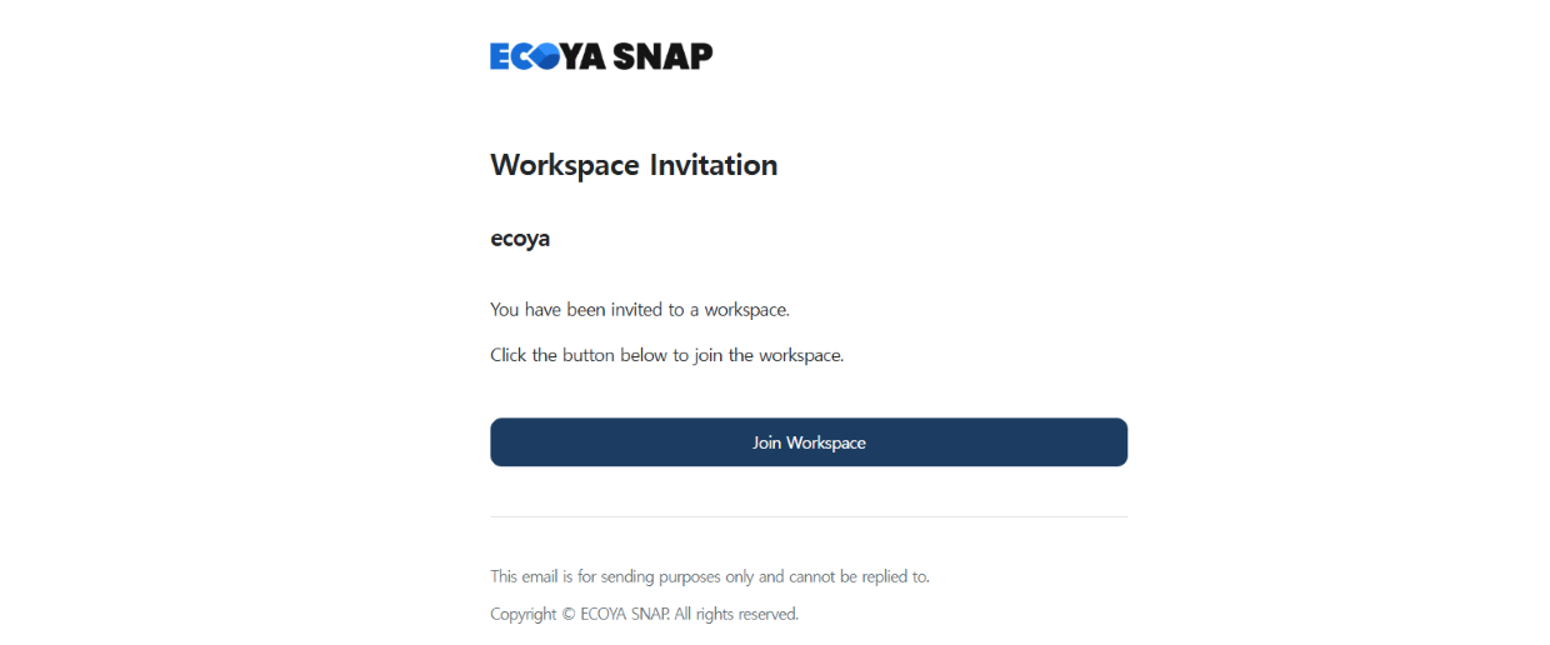
- The recipient clicks "Join" in the invitation email, is directed to the login page, and completes sign-up.
2. Roles and Permissions
There are three roles in a workspace.
- Owner: The highest-level role; manages the plan and billing (credits).
- Admin: An operational role that manages tasks and members. Cannot manage the plan.
- Member: Carries out assigned tasks. Has no management or billing permissions.

3. Removing a Member
- A removed member loses access to all pages in the workspace.
- To re-add them, you must send a new invitation.
Was this article helpful?
What to try next
Understanding Plans and CreditsHow work credits are consumed (1 per task) and how to choose the right plan.5-Minute Tutorial for First-Time UsersEnd-to-end quick-start guide covering sign-up via magic link or social login, workspace creation, registering and sending your first task, field photography, and sharing the report.Registering a Task and Sending SMSHow to register recurring field tasks and send SMS links to workers.