Checking Task Status and Closing Out
Understand the task status flow from Task Request through Task Completed, use list search and filters to monitor progress, and process task completion or cancellation.
Task status is changed on the web by managers, or in the app by field workers. Understanding what triggers each status change makes it much easier to track progress at a glance.
1. Task Status Flow
ECOYA SNAP tasks move through the following statuses in order.
| Status (KR) | Status (EN) | Trigger |
|---|---|---|
| 작업 요청 | Task Request | Manager clicks Send on the web → task is created |
| 작업 예정 | Task Scheduled | Field worker enters the 6-digit Task Code in the app |
| 작업중 | Working | Worker uploads at least 1 photo |
| 현장 작업 종료 | Field Work Completed | Worker taps Complete in the app |
| 작업 완료 | Task Completed | Manager clicks Task Complete on the task detail page |
| 작업 요청 취소 | Cancel Task Request | Manager clicks Cancel Task Request on the task detail page |
When Cancel Task Request is processed: the shared link is immediately and automatically deactivated — external partners can no longer access it. Reactivation is not possible.
2. Checking Status in the Task List
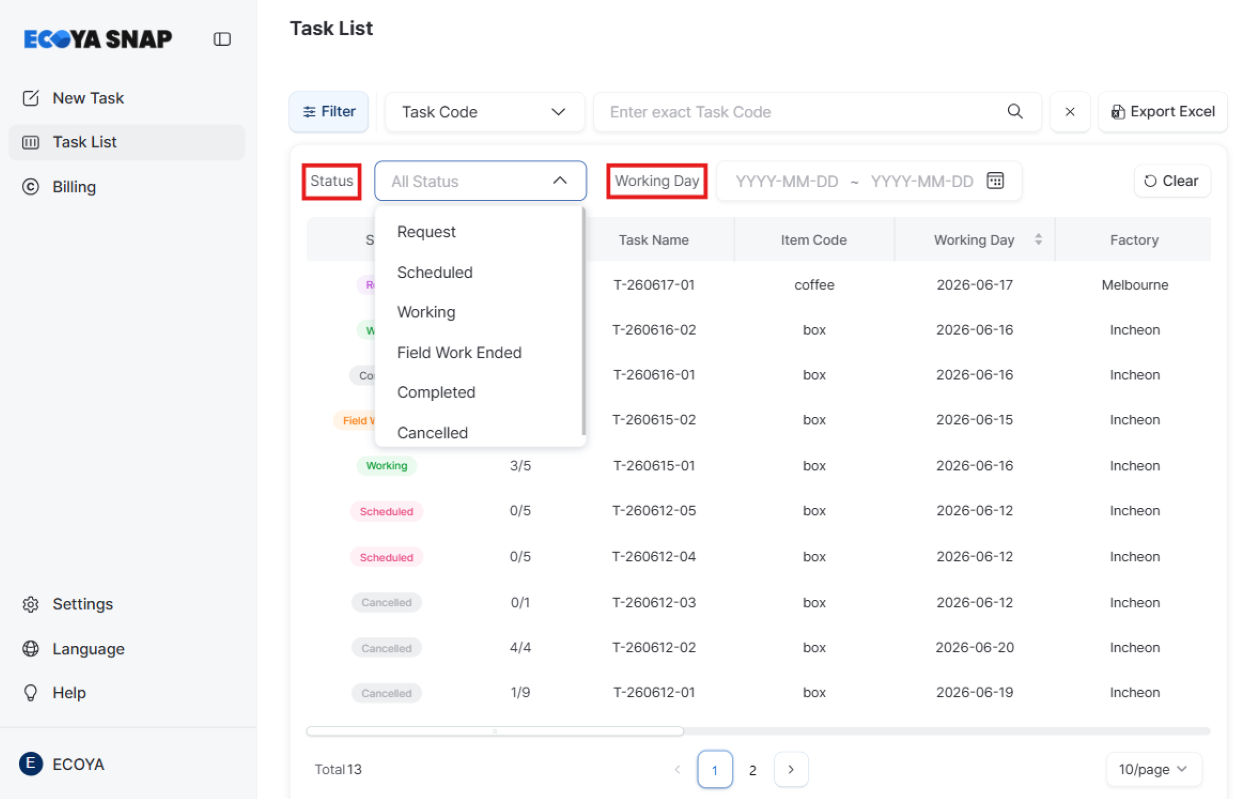
Use the search filters to quickly find the task you're looking for.
- Select a status from the Status dropdown to show only tasks in that state.
- Narrow the date range using Scheduled date to view tasks within a specific period. (Default: today through +30 days)
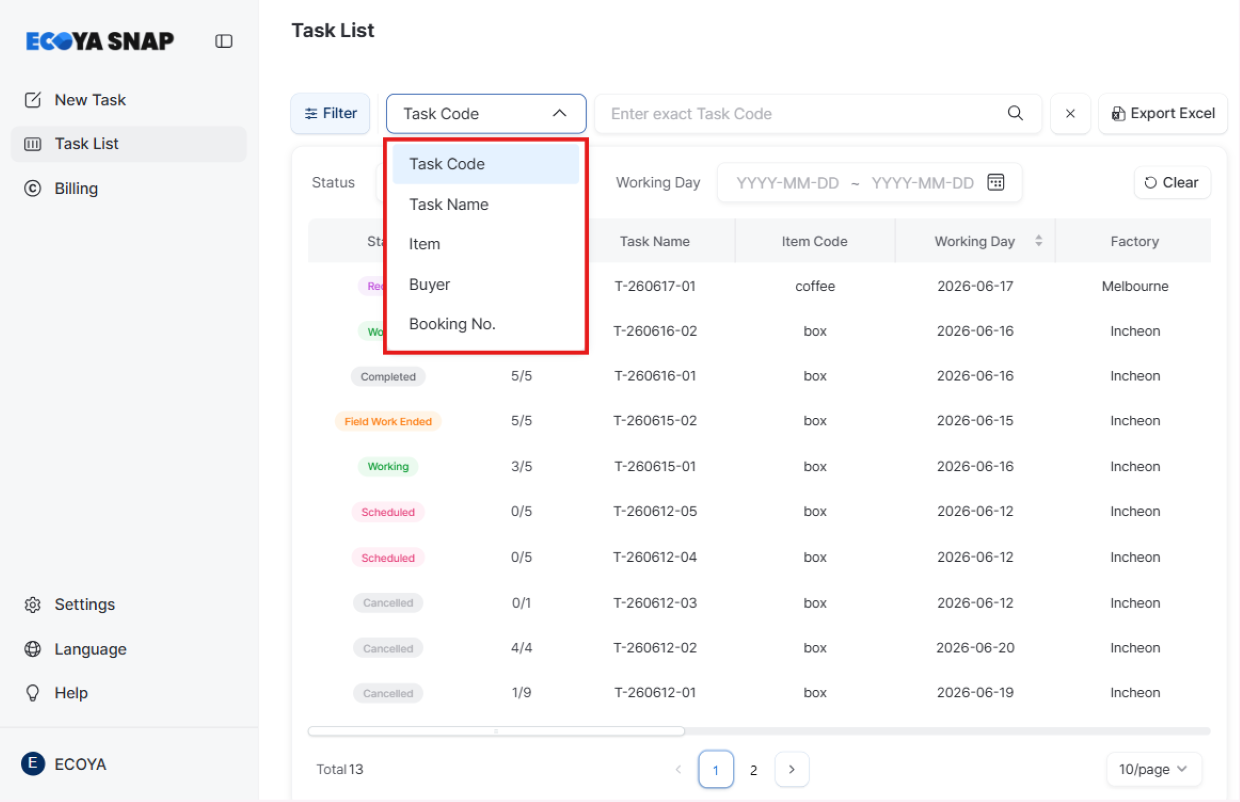
- Choose a category — Item, Buyer, task name, Booking No., or Task Code — and enter your search term.
- Press the Search button or Enter to load results.
- Click the Refresh button to reset all filters.
You can export your search results as an Excel file.
3. Reviewing Progress in Task Detail
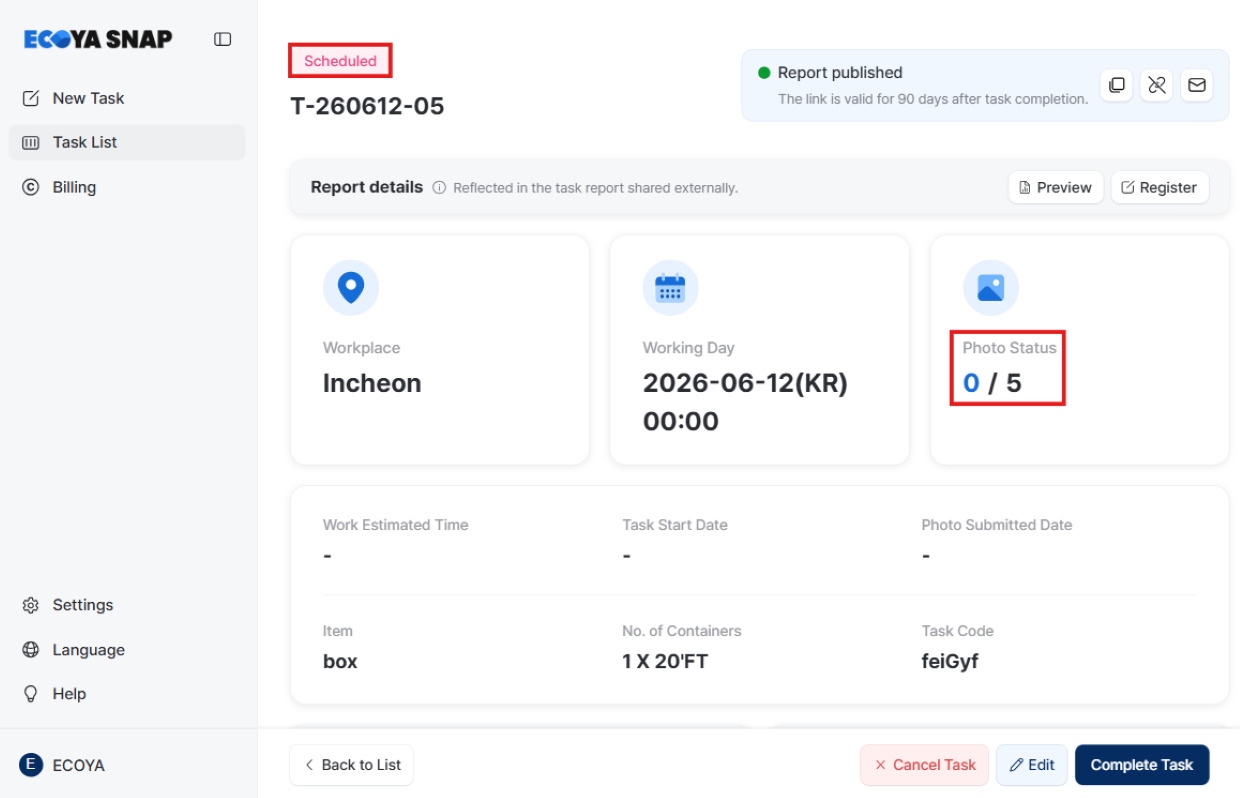
Click any row in the task list to open the task detail page.
Key items to check
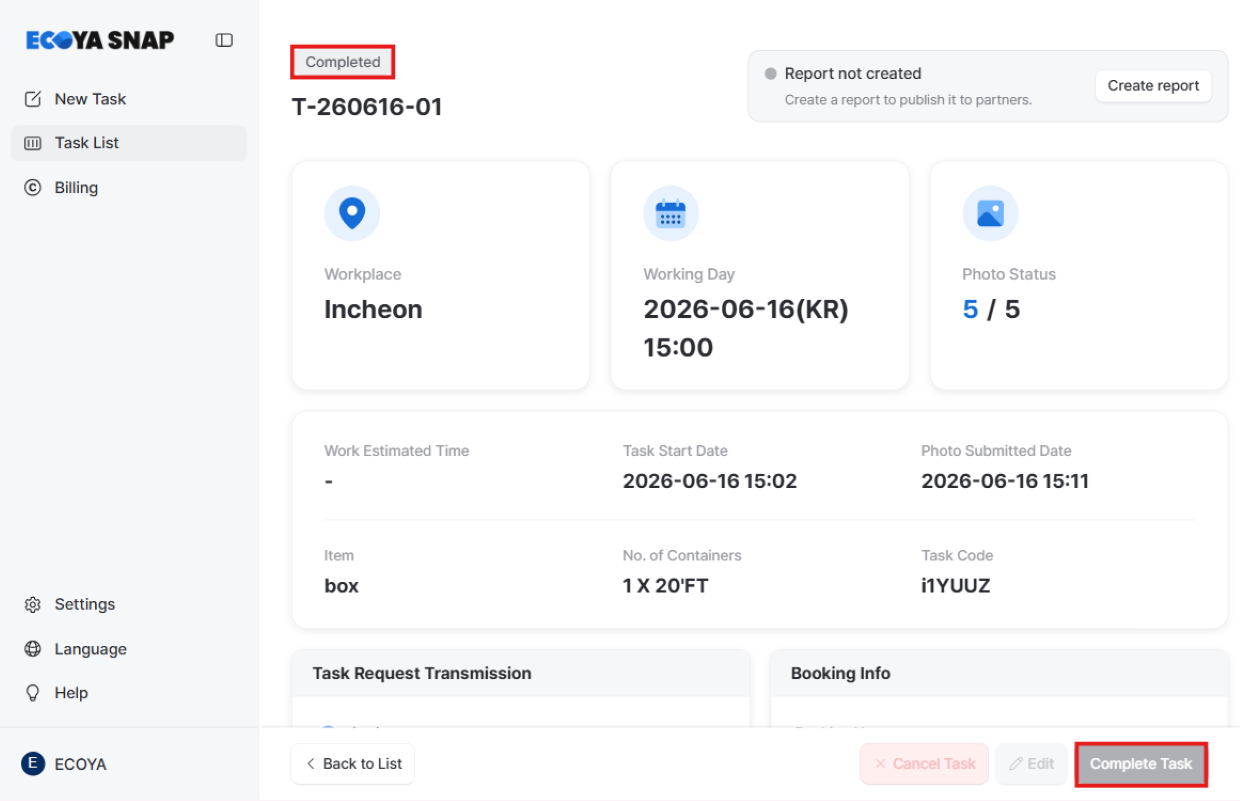
- Status badge at the top: shows the current task status at a glance.
- Photo progress bar: uploaded photos / total photos requested.
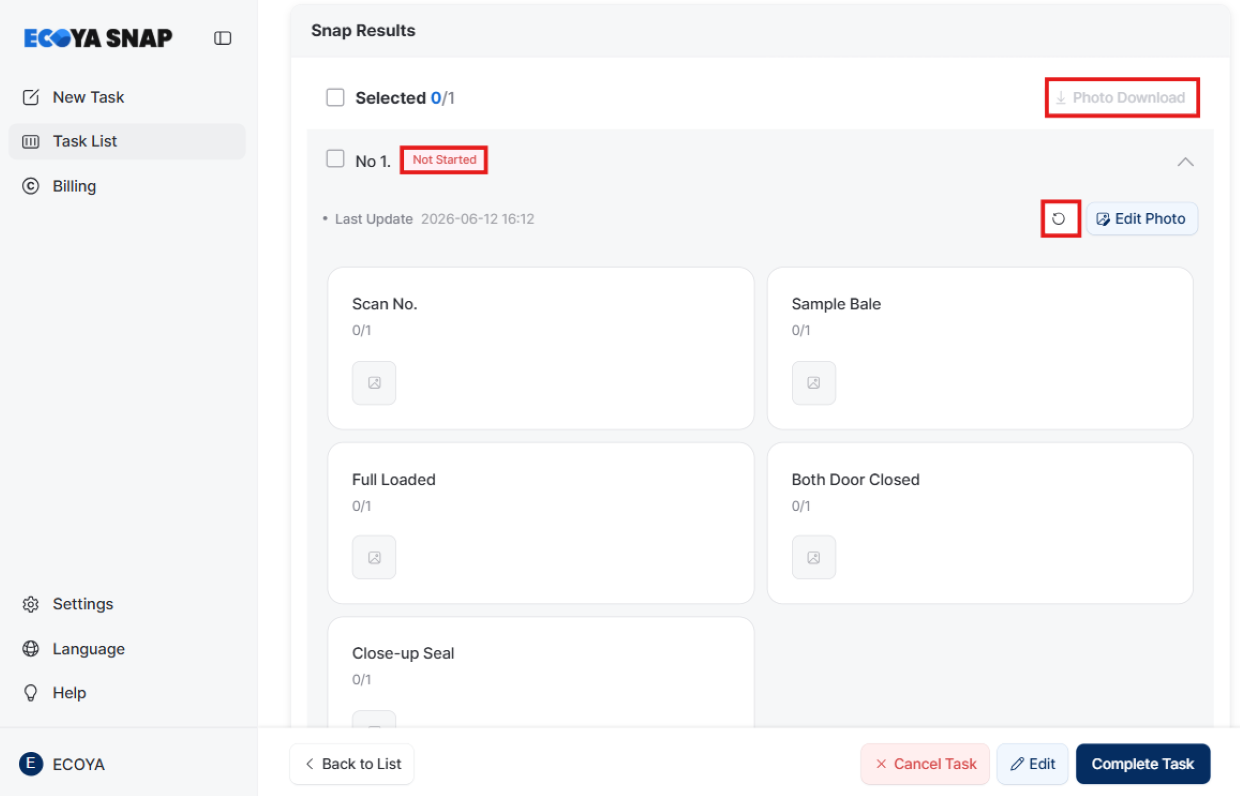
- Snap Work Results section: shows per-item status (Not Started / Working / Photo Submitted) along with container and seal numbers.
- Click a row to expand the photo list by type.
- Refresh button: updates the screen with the latest photos uploaded from the app.
- Download button: bulk-downloads selected item photos as a zip file.
Resending work instructions
- The Task Request Dispatch section shows the last sent time and email/SMS dispatch results (blue = success / red = failure).
- Click the Resend Work Instructions button to open a popup where you can specify recipients and resend.
4. Completing a Task
Once field work is done, mark the task as complete to close it out. Completed tasks are clearly distinguished in the task list, making it easy to stay on top of your work.
- Click the Task Complete button at the bottom of the task detail page.
- The status changes to Task Completed.
- The shared link remains valid for 90 days from the completion date.
After marking as complete, snap settings can no longer be edited.
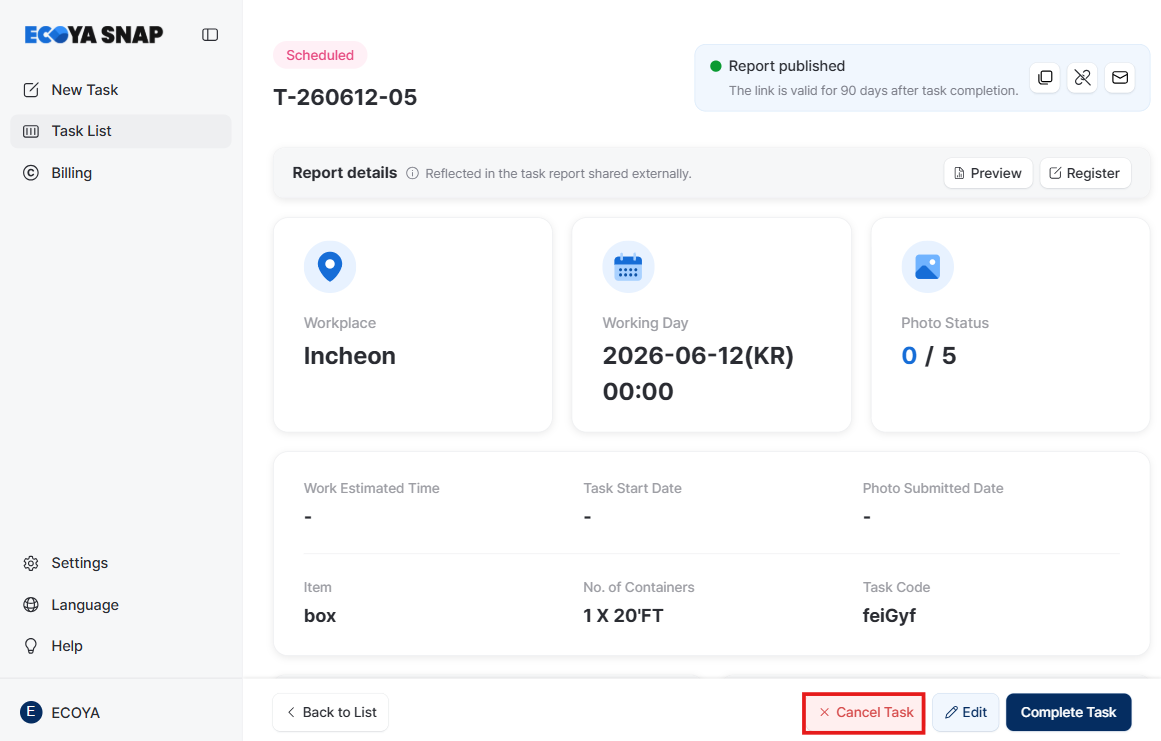
5. Cancelling a Task
Use this when a task cannot proceed or was created by mistake.
- Click the Cancel Task Request button at the bottom of the task detail page.
- The status changes to Cancel Task Request and the shared link is immediately deactivated.
- A cancellation notification email is automatically sent to the field worker.
Credits used for the cancelled task will not be refunded. Please double-check before cancelling.
Once cancelled, editing and link reactivation are not possible.